(delayed posting for project confidentiality)

Last week, I officially started my internship at ImageWorks, a print and graphics shop in Orange City. When I applied, the position was listed as a “Printing Production Internship”. The role included prepping files, running printers and cutters, quality checking products, and helping with packaging and shipping.
When I met with Sherri (the CEO and manager of ImageWorks), she explained that my role would be more flexible than the listing. ImageWorks is run by Sherri and a team of four employees. She thoroughly described to me the different roles and tasks that take place at the shop and encouraged me to personally assess the skills I wanted to learn, based on how helpful they would be to my future career. My work has not only felt meaningful for the business, but essential to bringing me closer to my career goals post-graduation.
Meeting The Team:
On my first day, Sherri gave me a tour of the shop and walked me through the roles of the employees that work there, including:
- Production and installation (run by 2 employees): running large-format printers, operating embroidery machines, and doing installations. The installs range from adding phone numbers and logos to vehicles to wrapping walls inside local businesses.
- Graphic design (Bridget): By designing artwork for signage and print projects, the graphic designer turns the client requests into files and designs that are ready to be printed.
- Sales + customer service (Kimberley): Managing client communication, customer orders, and various other sales.
Day 1: Online Business Listings
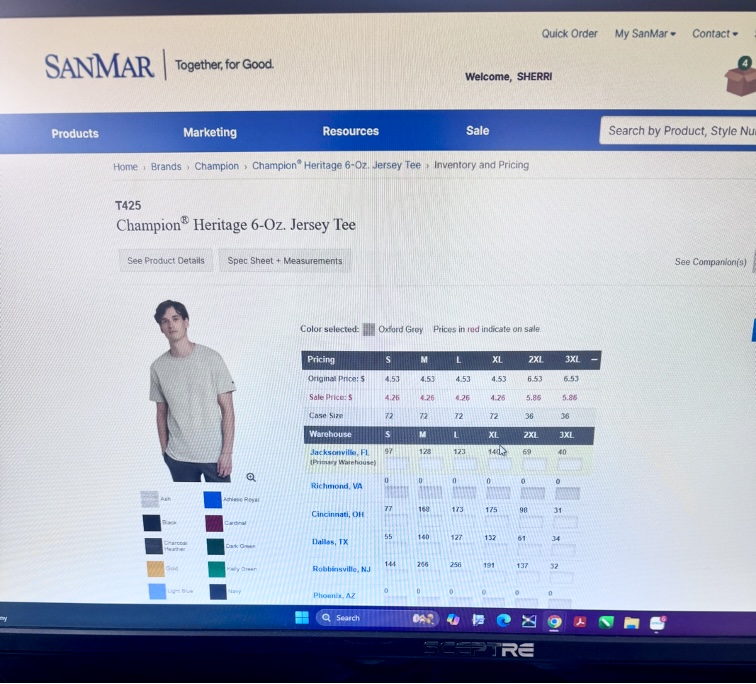
On the first day, Sherri showed me the desk I’d be working at. She had set up an Outlook account for me with the ImageWorks domain name. Sherri explained that ImageWorks had been around for 26 years and was well established as a business in Orange City; however, she mentioned the company’s online presence was not as optimized as it could be. She asked of me to set up business listings for the company on platforms like TripAdvisor, YellowPages, LinkedIn, and other major review sites. She sent a list of 150 directories and platforms to claim and standardize business listings to my new email. I was instructed to chip away at them over time, 3 or 4 listings a day, in order to increase the reach of the company. I kept my progress in a shared Excel spreadsheet that she had created in order to organize account names, passwords, and status on each website. I completed 3 listings (Open Street Map, HERE Map, MapQuest) on my first day. After completing the registration for those websites, I asked if I should wear a specific uniform to the office. She guided me to a website used for bulk ordering blank clothing. Sherri told me that she had chosen gray for the company shirts, but that I could select my own style of shirt and add however many that I needed to the company cart. I selected 2 heavy cotton shirts and one crewneck sweatshirt in heather gray and added them to the cart. She told me that when they arrived, I would learn to use the large industrial embroidery machine for the first time by embroidering the company logo onto my selected shirts.
Day 2: Stetson Baseball Wrap Project (1/23)
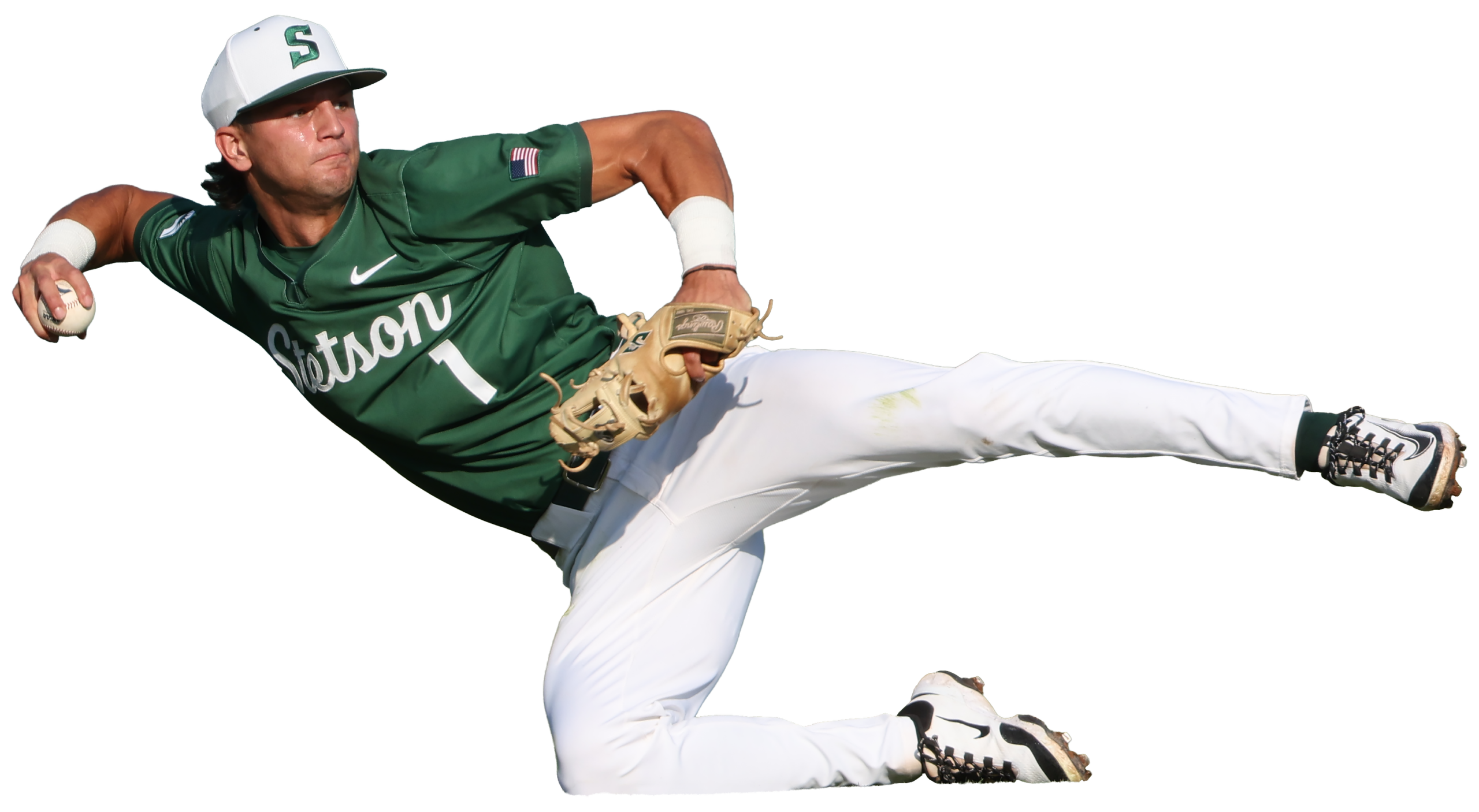
On my second day with ImageWorks, I was introduced to Bridget, the team’s lead graphic designer. Sherri told me that my task for the day would be working with Bridget on a project for the Stetson Baseball team. A few years ago, Stetson Baseball had ordered a large wall wrap (a huge sticker) for the men’s locker room. The wrap had a sepia filter over photos of Stetson baseball players in various action shots, with a background of a drone shot of the stadium. Motivational words in different fonts and sizes were added on the top of the graphic.
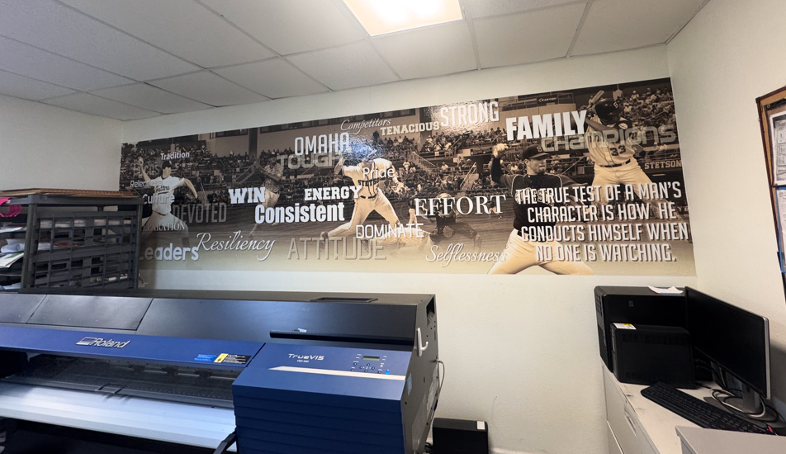
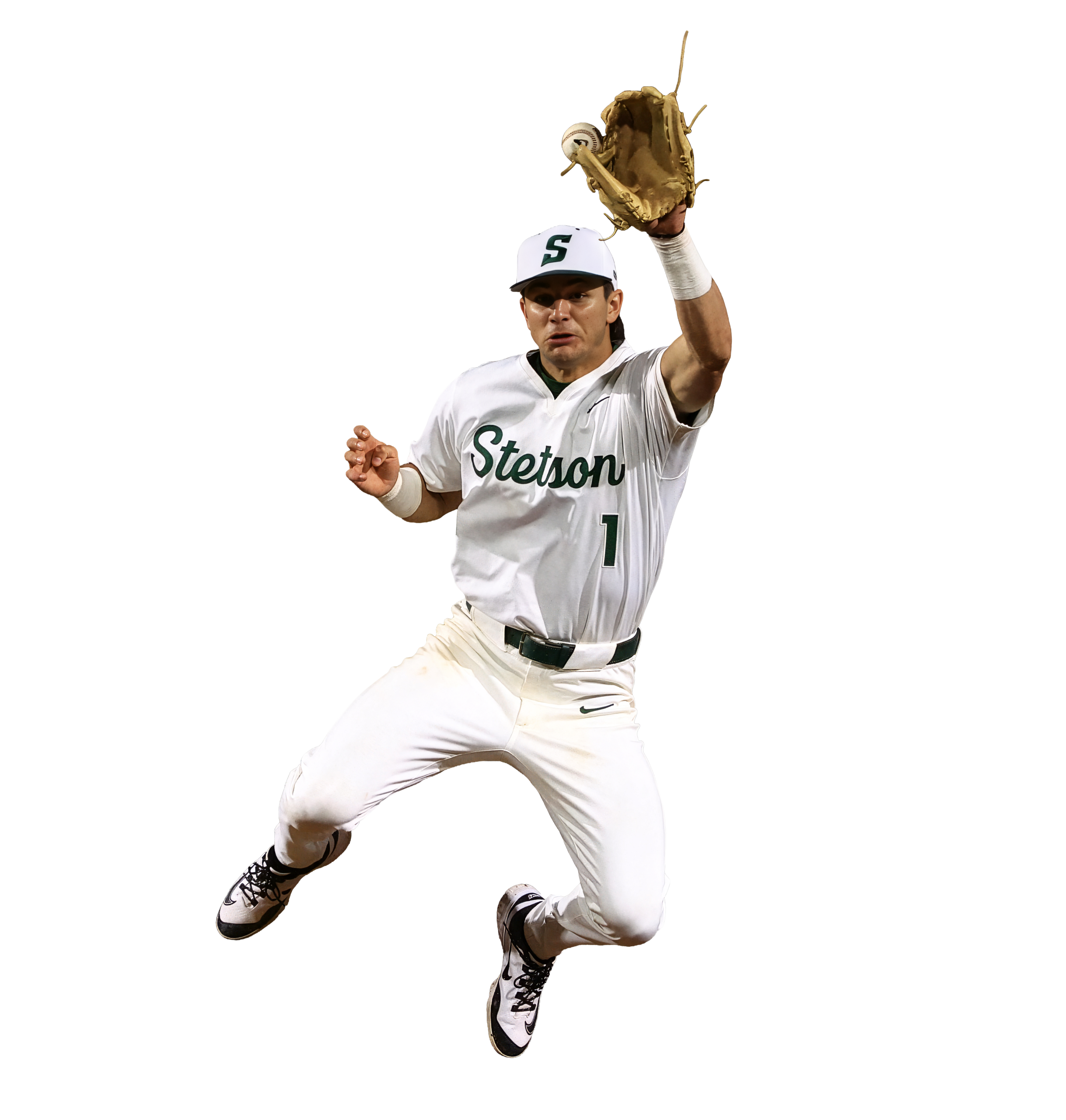

Stetson Baseball had recently ordered another wrap, in the same style, with current players to replace the old ones. They had sent 30 photos of the players for use in the wrap. Since the wrap was going to be very large (about 36 feet by 10 feet), I needed the players to be in very high resolution. I went through the photos and checked the sizes on each in Adobe Photoshop to determine the largest ones. Since there weren’t strict instructions for the editing and masking, I created my own process to accomplish the task. It’s best described through the following bullet points:
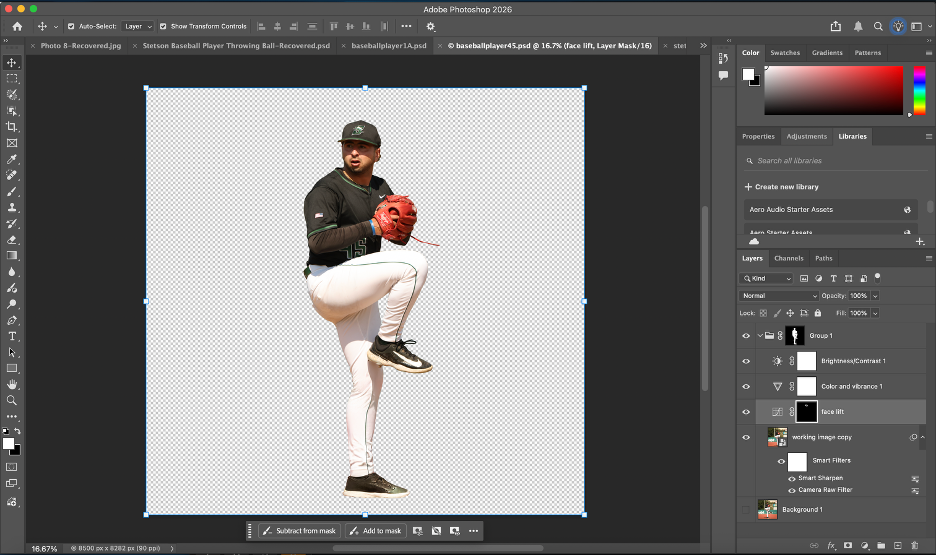
- After importing, I duplicated the original photo layer to keep a clean backup / unchanged layer.
- I used Photoshop’s select subject tool and then applied the mask.
- I cleaned up the edges of the mask using the polygonal lasso tool.
- If needed, I used the defringe tool to remove color spill along the edges.
- I put the cutout into a group and applied the mask to the entire group (which is important for upscaling in the next step). I did this so that the upscaled version would have the same mask.
- I upscaled the image using Topaz Gigapixel (I experimented with different AI upscaling tools; I found that this was the best one for the purpose of my project) with face recovery checked and upscaling at 2x scale.
- I applied the camera raw feature, and used smart sharpen to make the details more defined.
- On certain players, I masked parts of the faces and adjusted the curves to reduce shadows from their baseball caps.
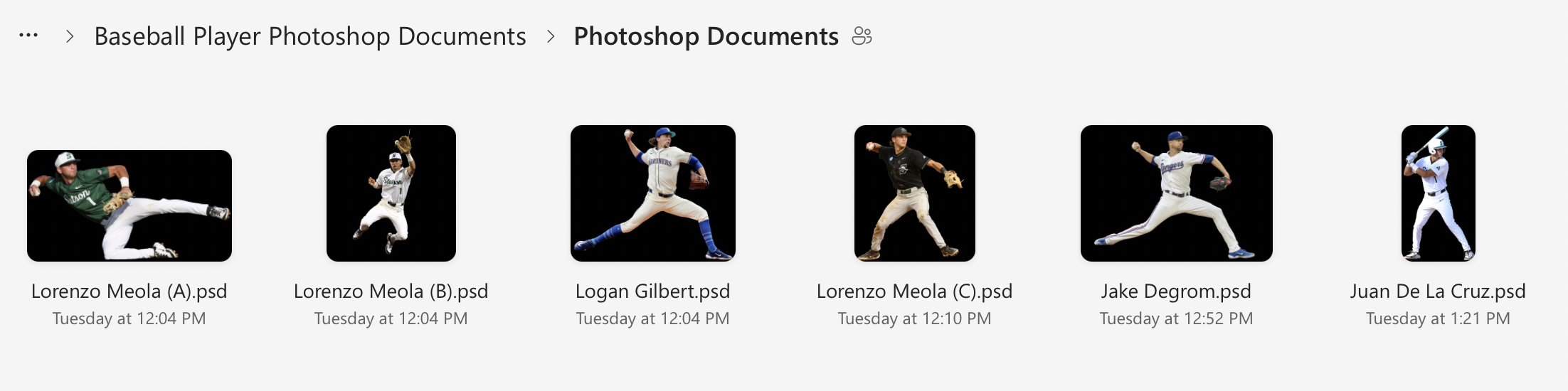
- I zoomed in very close to check for any mistakes in the masking or issues with the AI upscaling, then uploaded the .psd files to a shared folder in OneDrive for Bridget to view.
Day 3: Building a File Organization System (1/27)
On the third day (1/27), I realized that I needed a better system to organize the files for the wrap project. Previously, I had been saving each photoshop document and emailing them individually to Bridget, but that was turning into too many emails as I revised each document; I wanted to have a shared folder where I could upload the final versions and replace the files if I returned to them and cleaned them up further.
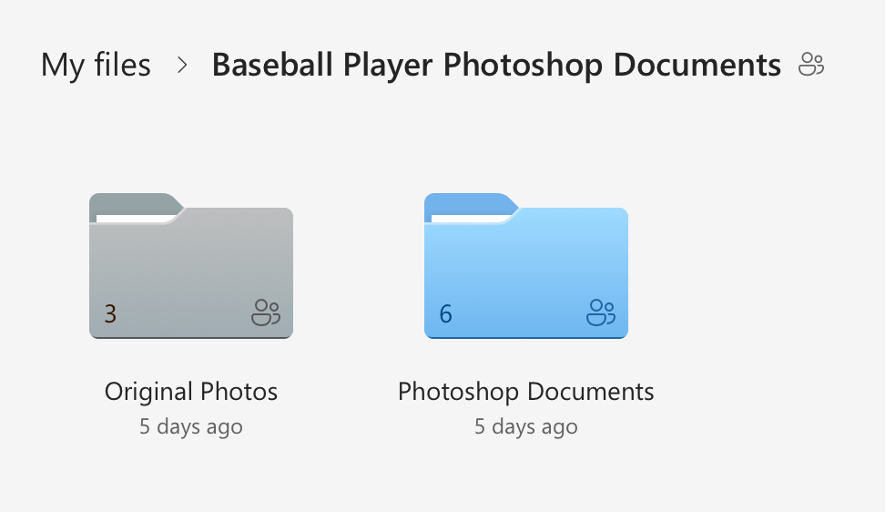
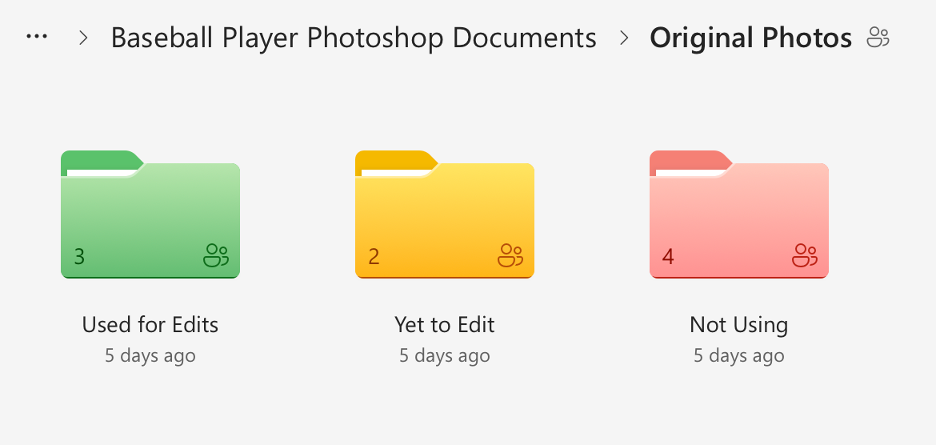
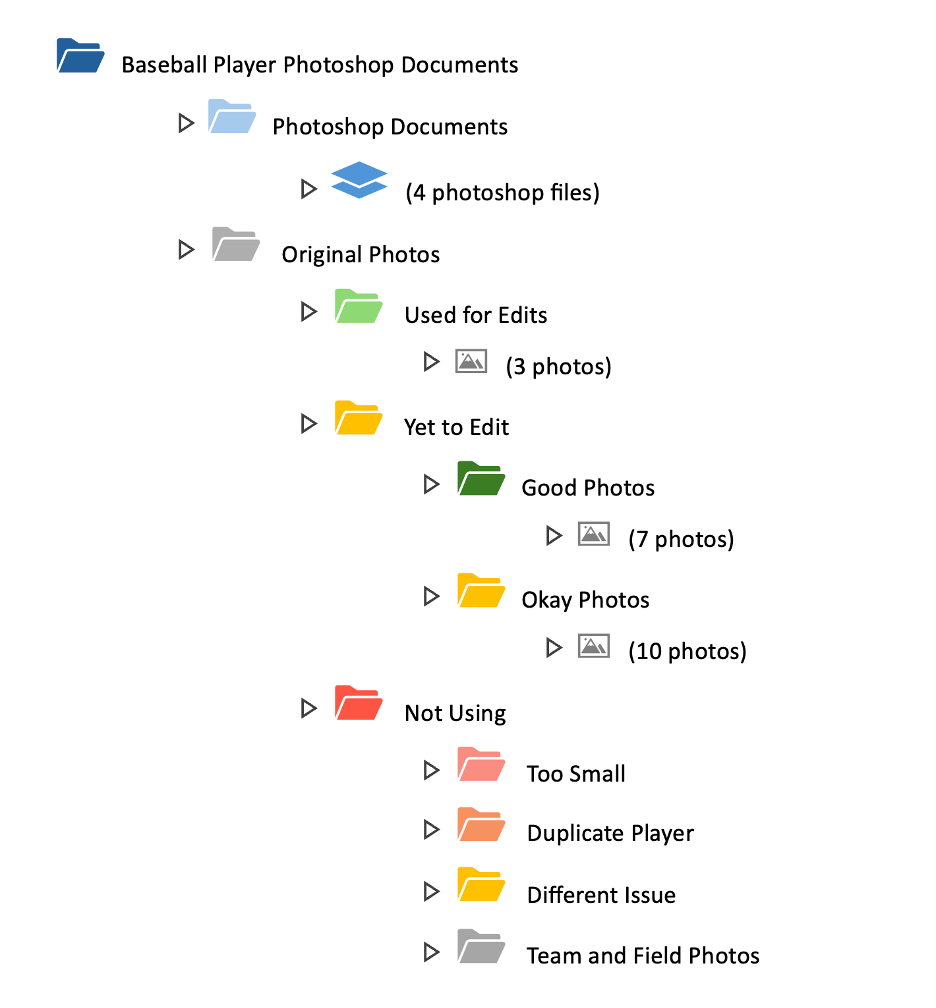
I created a shared folder in OneDrive with many subfolders that held the original photos sorted into categories and my completed photoshop documents. I went through the 30 original photos and checked each one for print suitability based on resolution, sharpness, lighting, motion blur, and whether there was enough usable space for a full body cutout. I sorted the photos into three categories (Approved/Use, Secondary/Conditional, and Do Not Use), flagged anything that would require heavy upscaling, and separated duplicates or near-duplicates of the same player so the final wrap would have more variety. Then I reorganized the OneDrive project folder, so unedited originals were separated from already used originals, created additional folders for images we weren’t using (too small, redundant, or low quality), and standardized the naming so it was consistent. I also color-coded the folders. Once I had cleaned everything up, I shared the folder to Bridget’s email.
Though this process sounds simple, it took almost 3 hours. I am not an organized person by any measure, and the task of sorting and color coding was monotonous and exhausting. It was necessary though, and the new file organizing system makes it very easy to see how much of the project remains.
Here is a visual I made to show the organization system in more detail:
And here are some screenshots of the actual file system itself: